
Discovery Eco-Calculator
Implementation instructions
To install the calculator on the website page you have to add the script and the styles in the header area of the page.
<link rel="stylesheet" href="https://the-navigator-company-cdn.ams3.digitaloceanspaces.com/discovery-calculator/calculator.css" />
<script type="module" src="https://the-navigator-company-cdn.ams3.digitaloceanspaces.com/discovery-calculator/calculator.js"></script>
Then you have to add the following code in the place where the calculator should appear.
<div x-data="calculator" id="discovery_calculator"></div>Here is a complete example
<!DOCTYPE html>
<html lang="en">
    <head>
        <meta charset="utf-8">
        <meta name="viewport" content="width=device-width, initial-scale=1">
        <title>Discovery Paper eco-calculator</title>
		<link rel="stylesheet" href="https://the-navigator-company-cdn.ams3.digitaloceanspaces.com/discovery-calculator/calculator.css" />
		<script type="module" src="https://the-navigator-company-cdn.ams3.digitaloceanspaces.com/discovery-calculator/calculator.js"></script>
    </head>
    <body>
        <div x-data="calculator" id="discovery_calculator"></div>
    </body>
</html>
Localization
To localize the calculator you have to add a config with the language you need.
<div x-data="calculator({ lang: 'es' })" id="discovery_calculator"></div>The following languages are available: de, en, es, fr, fi, hr, it, nl, pl, pt
If it is necessary to customize any text on the calculator interface, simply override the corresponding key. The keys that are available for customization are:
| Key | Default (English) |
|---|---|
| title_segment_1 | DISCOVER WHAT |
| title_segment_2 | YOU CAN SAVE |
| description | If you want to run a more sustainable business… |
| reams_description | Please indicate how many reams of 80 g.m-2 paper… |
| ream_type_description | Please specify which grammage of Discovery’s paper… |
| dropdown_placeholder | Select Grammage |
| cta | Simulate your savings |
| results_title | In one year, by using Discovery you will: |
| widget_wood_title | Less Wood |
| widget_wood_bottom | vs. 80 g.m-2 |
| widget_print_title | Print More |
| widget_print_bottom | vs. 80 g.m-2 |
| widget_waste_title | Less Waste |
| widget_waste_bottom | vs. 80 g.m-2 |
| widget_transport_title | Less Transport |
| widget_transport_bottom | vs. 80 g.m-2 |
| widget_carbon_title | CO2 Stock |
| widget_carbon_bottom | on paper |
| widget_km_title | Car Trips |
| widget_km_bottom | emissions |
| widget_carbon_foot_title | Less Carbon |
| widget_carbon_foot_bottom | vs. 80 g.m-2 |
| widget_water_title | Less Water |
| widget_water_bottom | vs. 80 g.m-2 |
| remark | * with an equivalent 80 g.m-2 paper |
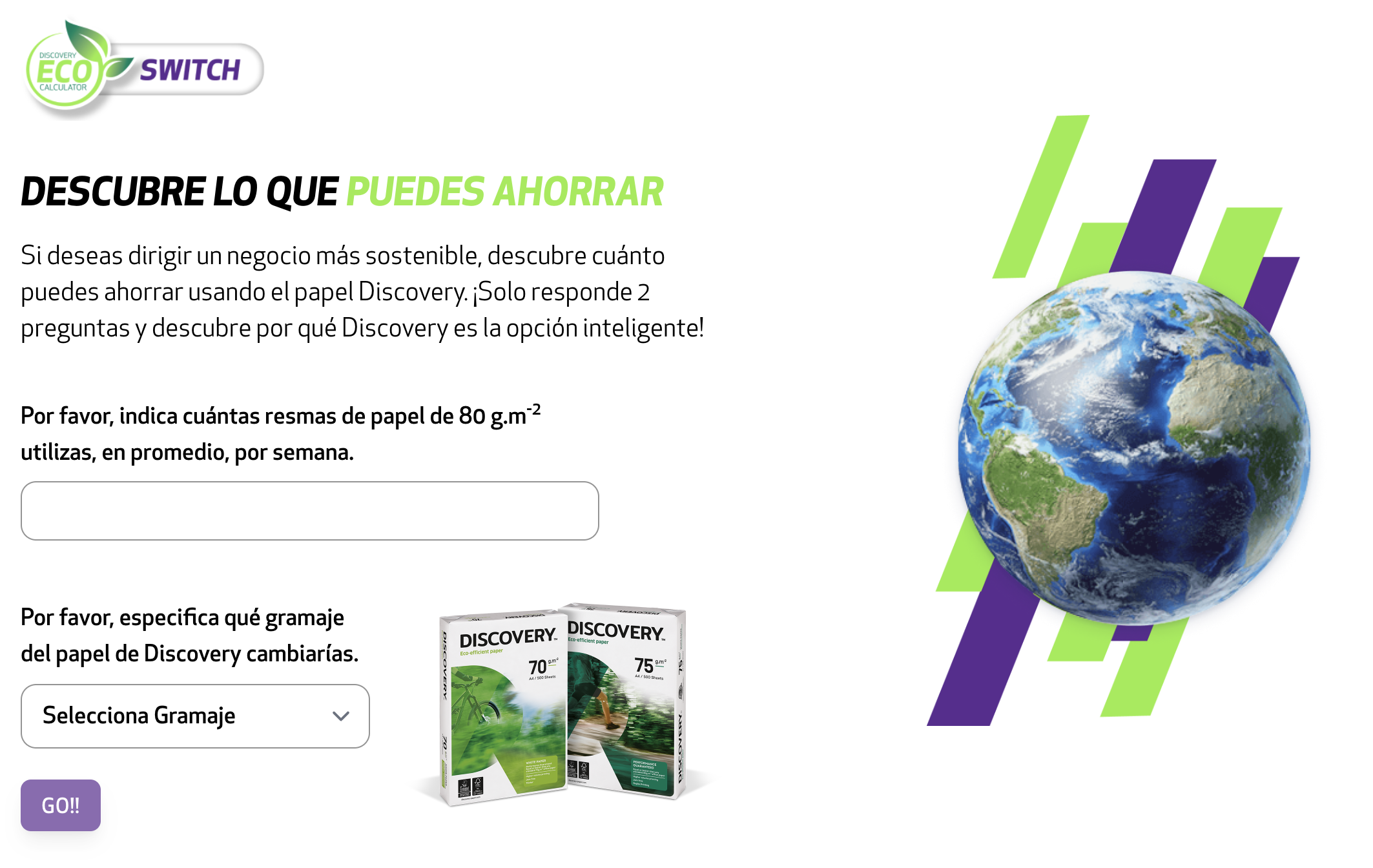
In this example, we will initialize the calculator in Spanish and change the button text to "GO!!!"
 <div x-data="calculator({
    lang: 'es',
    translations: {
        cta: 'GO!!',
    }
})" id="discovery_calculator"></div>
The result:
Demonstration in different screen sizes
The calculator is prepared to work on several screen widths. In this way we can guarantee a good user experience regardless of the device the user is using. Here are three examples of implementing the calculator in three different screen widths:
Example for a screen width of 1024px:
Example for a screen width of 768px:
Example for a screen width of 384px: